
TAKE MISSION CONTROL WITH YOU
Install the Staggernots app
Add Staggernots to your Home Screen for quick access to videos, games, and Bible stories. There is no App Store or Play Store download.
SAFARI · IPHONE & IPAD
Add it to your Home Screen
- 01
Open the site in Safari
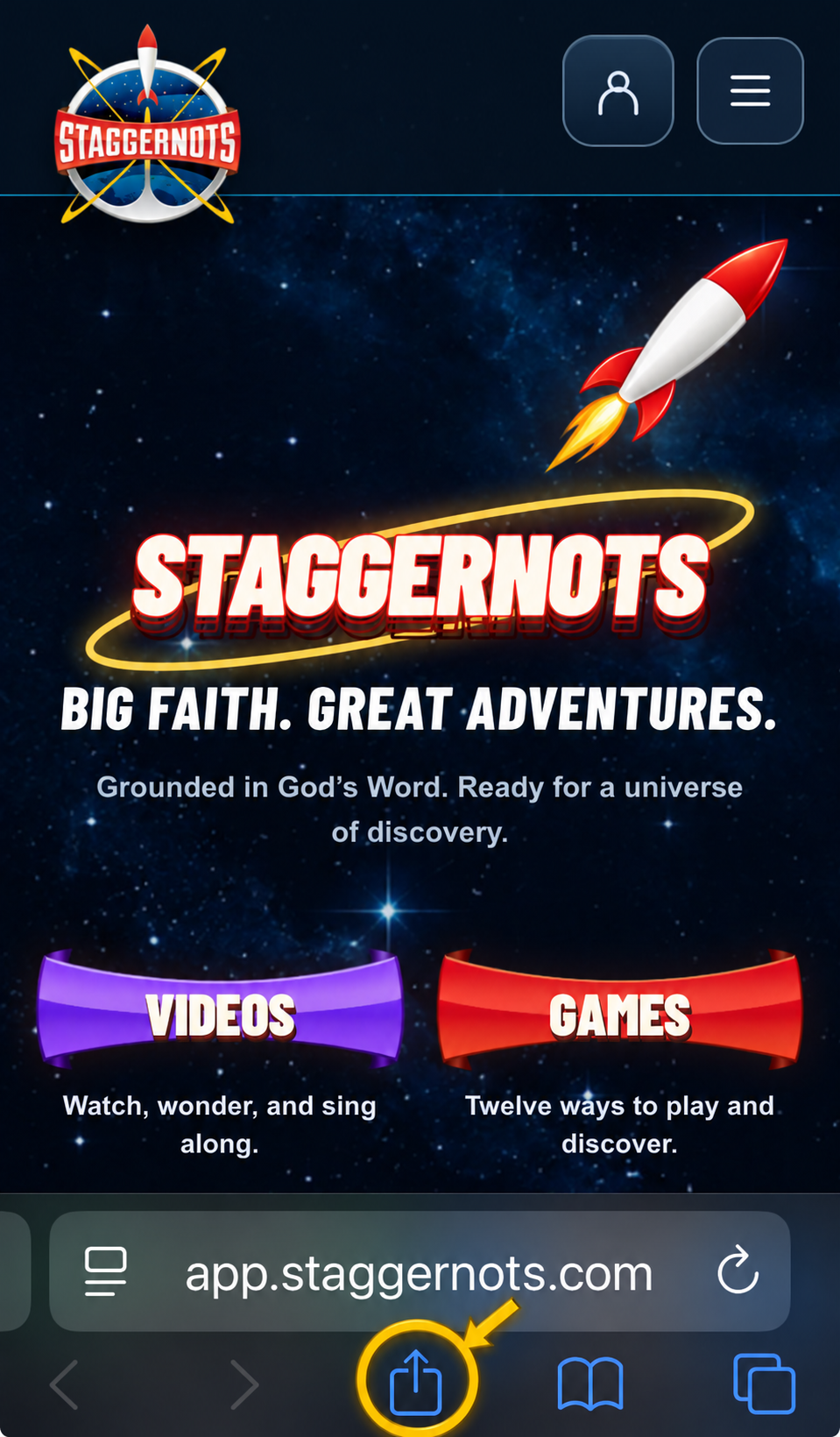
Visit app.staggernots.com in Safari. Tap the Share button—the square with an arrow pointing up, circled in yellow below.
If your Safari layout shows a page menu instead, open that menu and choose Share.
Tap Share - 02
Choose Add to Home Screen
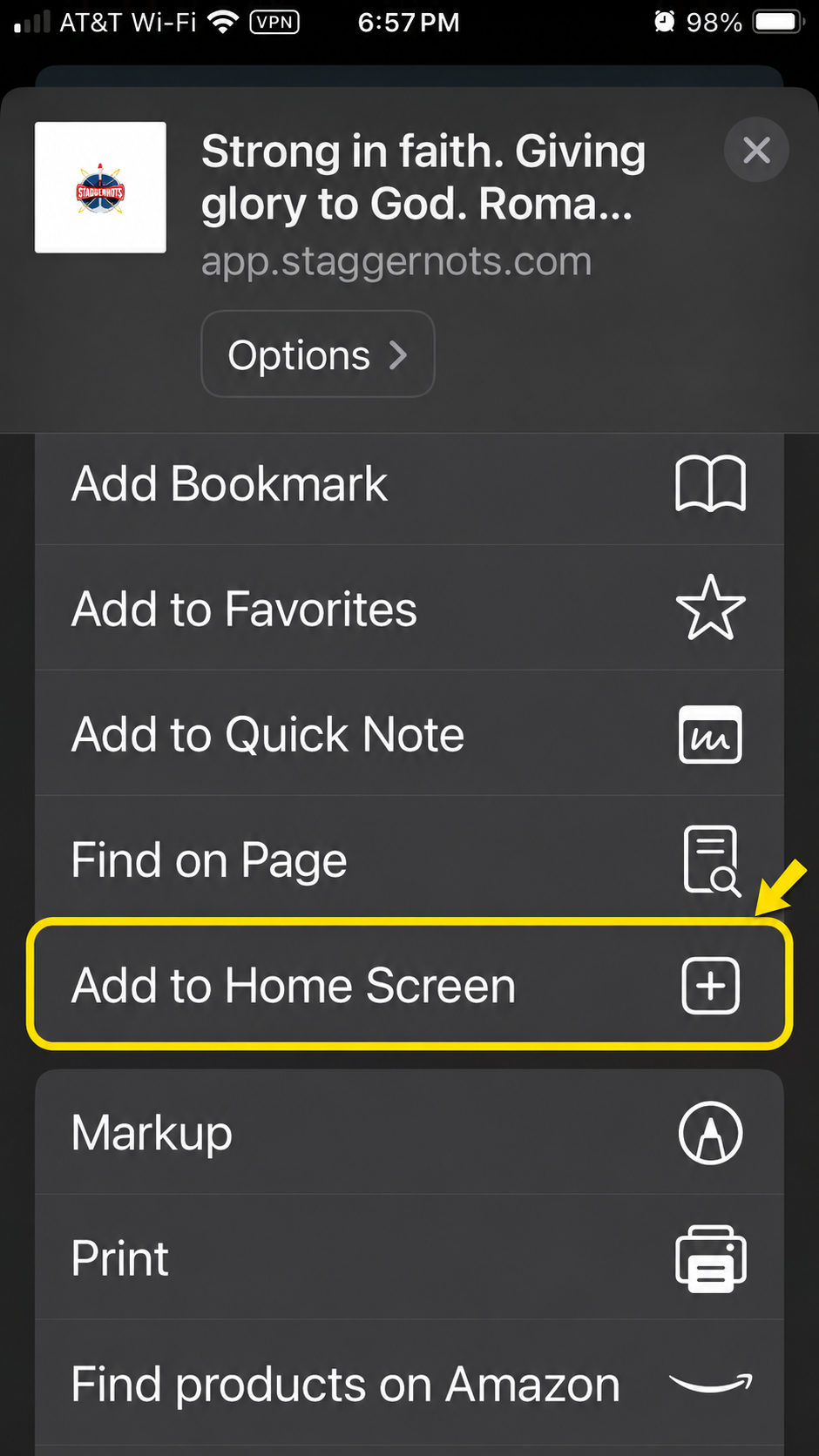
Scroll through the Share options and tap Add to Home Screen. The row is outlined in yellow below.
Can’t find it? Scroll to the bottom of the options, tap Edit Actions, and add Add to Home Screen.
Tap Add to Home Screen - 03
Name it and tap Add
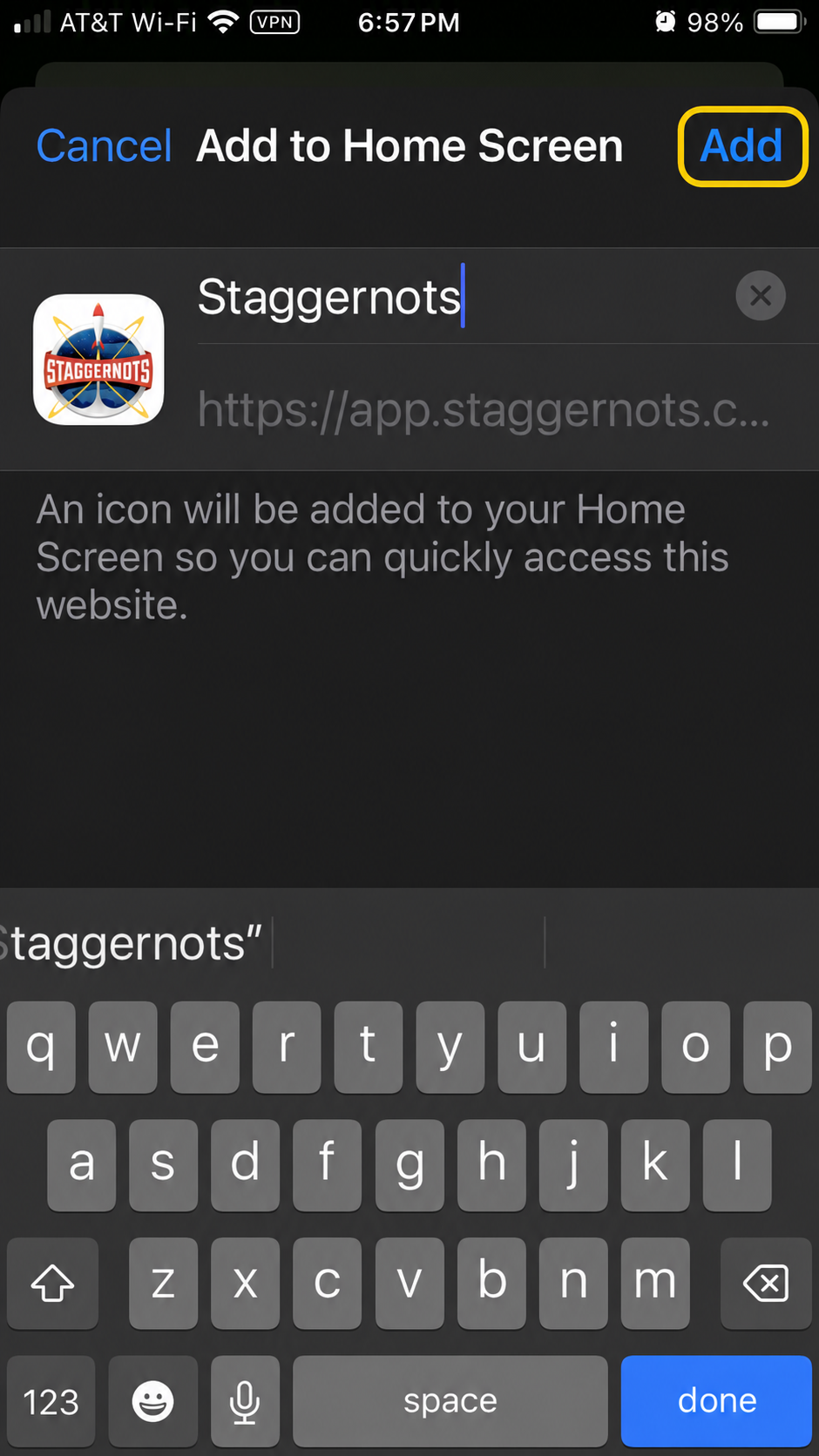
Keep the name Staggernots. If you see Open as Web App, turn it on. Then tap the blue Add button at the top right, highlighted below.
Tap Add - 04
Find your new icon
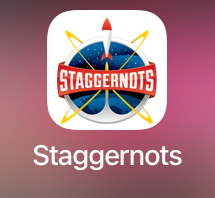
Return to your Home Screen and look for the Staggernots rocket. Tap the icon whenever you want to launch the app.
Ready for liftoff
CHROME · ANDROID
Install on Android
- 01
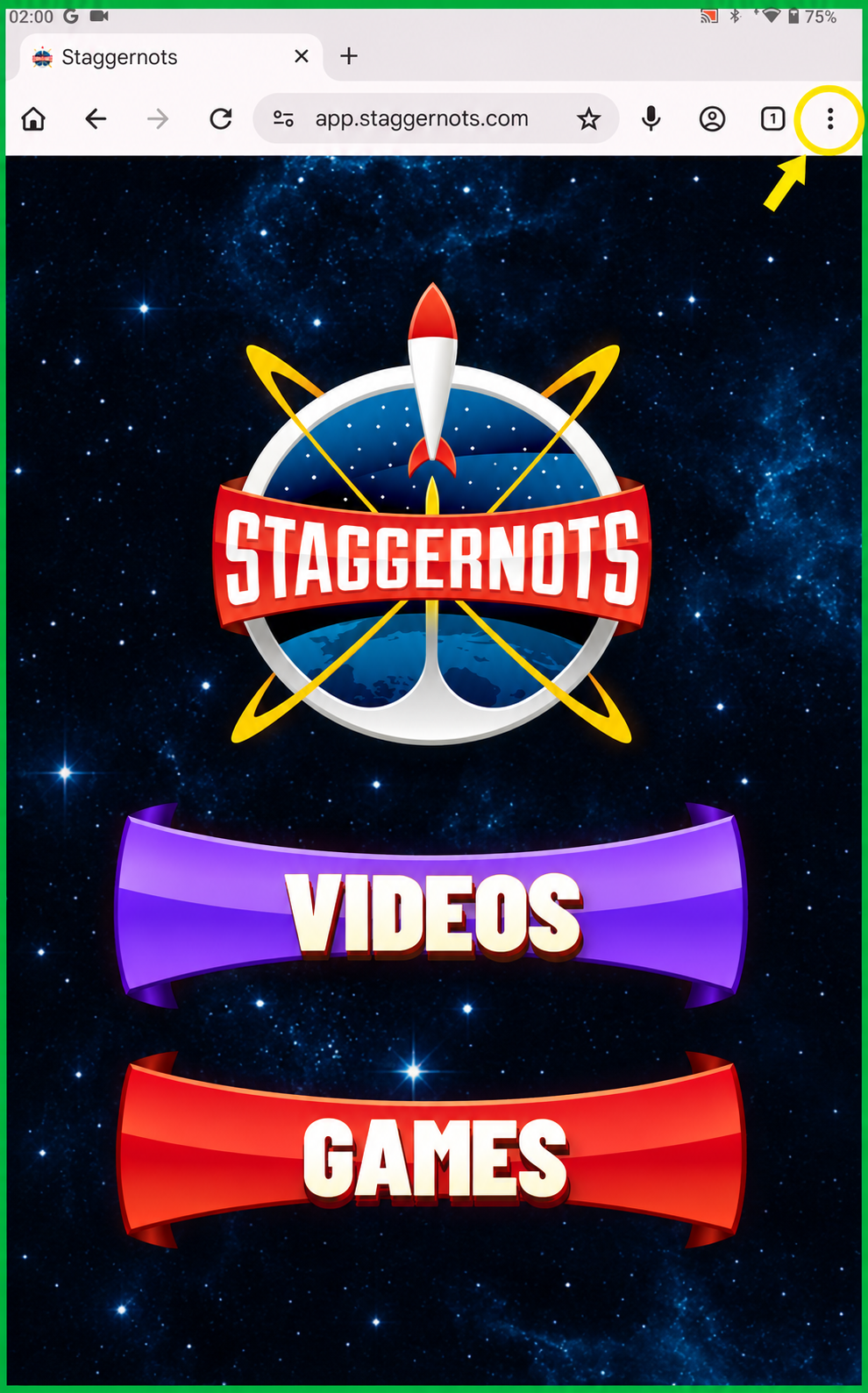
Open Chrome’s menu
Visit app.staggernots.com in Chrome. Tap the three dots at the upper right, circled in yellow.
Tap the three dots - 02
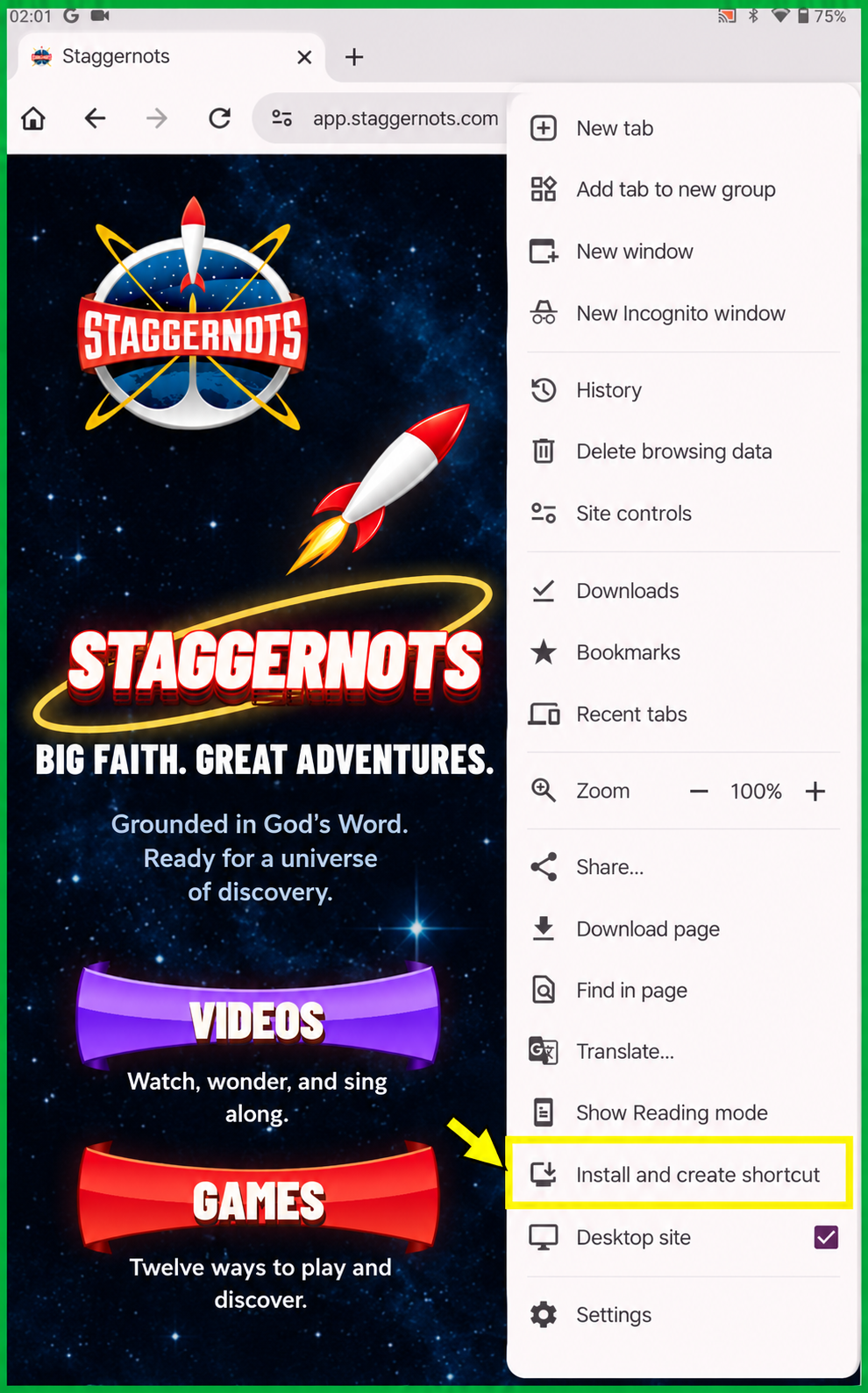
Choose the install option
In Chrome’s menu, tap Install and create shortcut, outlined in yellow. On some phones, this option may say Install app or Add to Home screen.
Tap Install and create shortcut - 03
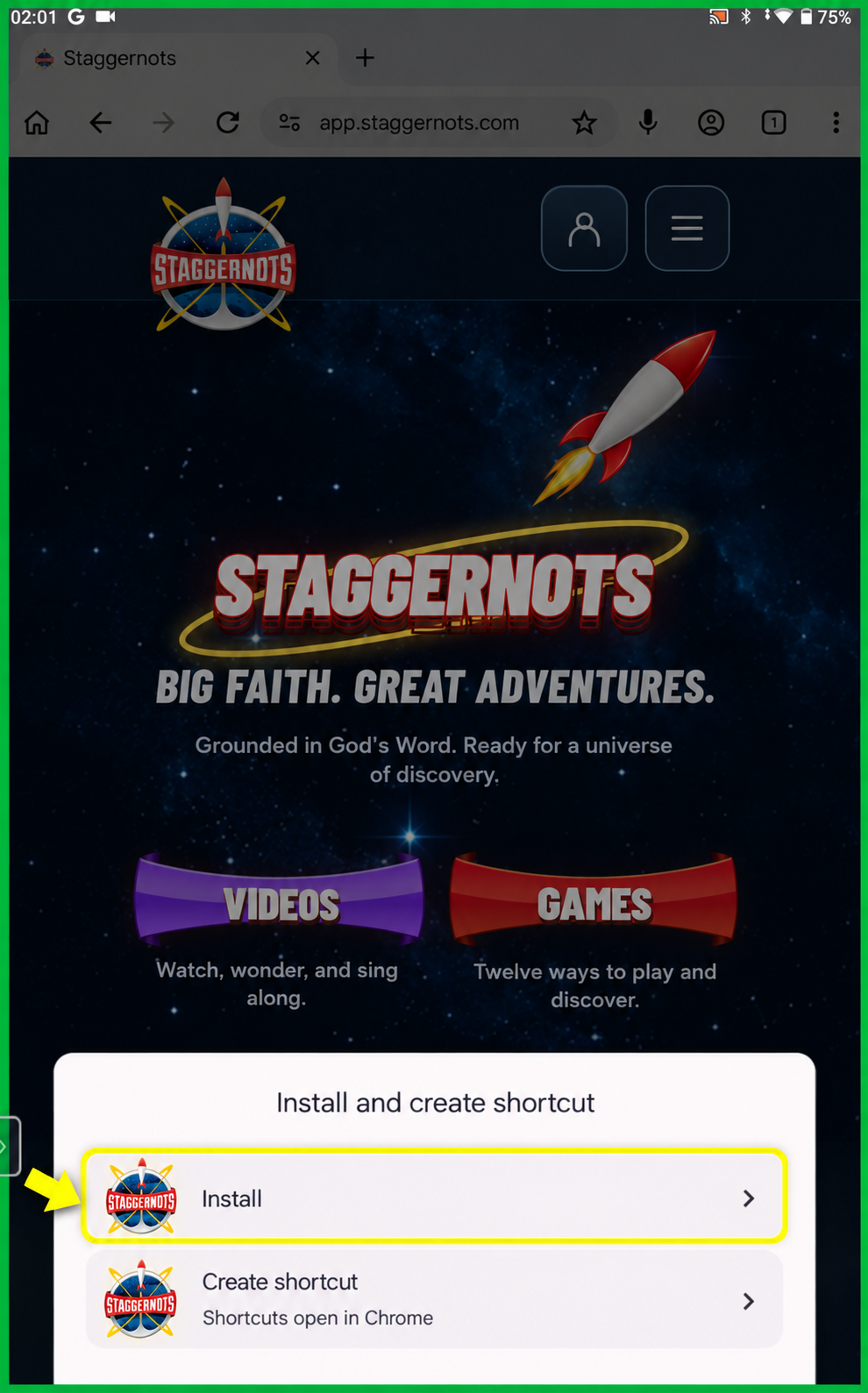
Choose Install
Chrome may offer two choices. Tap Install, highlighted below, to add Staggernots as an app. Create shortcut opens the site in a regular Chrome tab.
Tap Install - 04
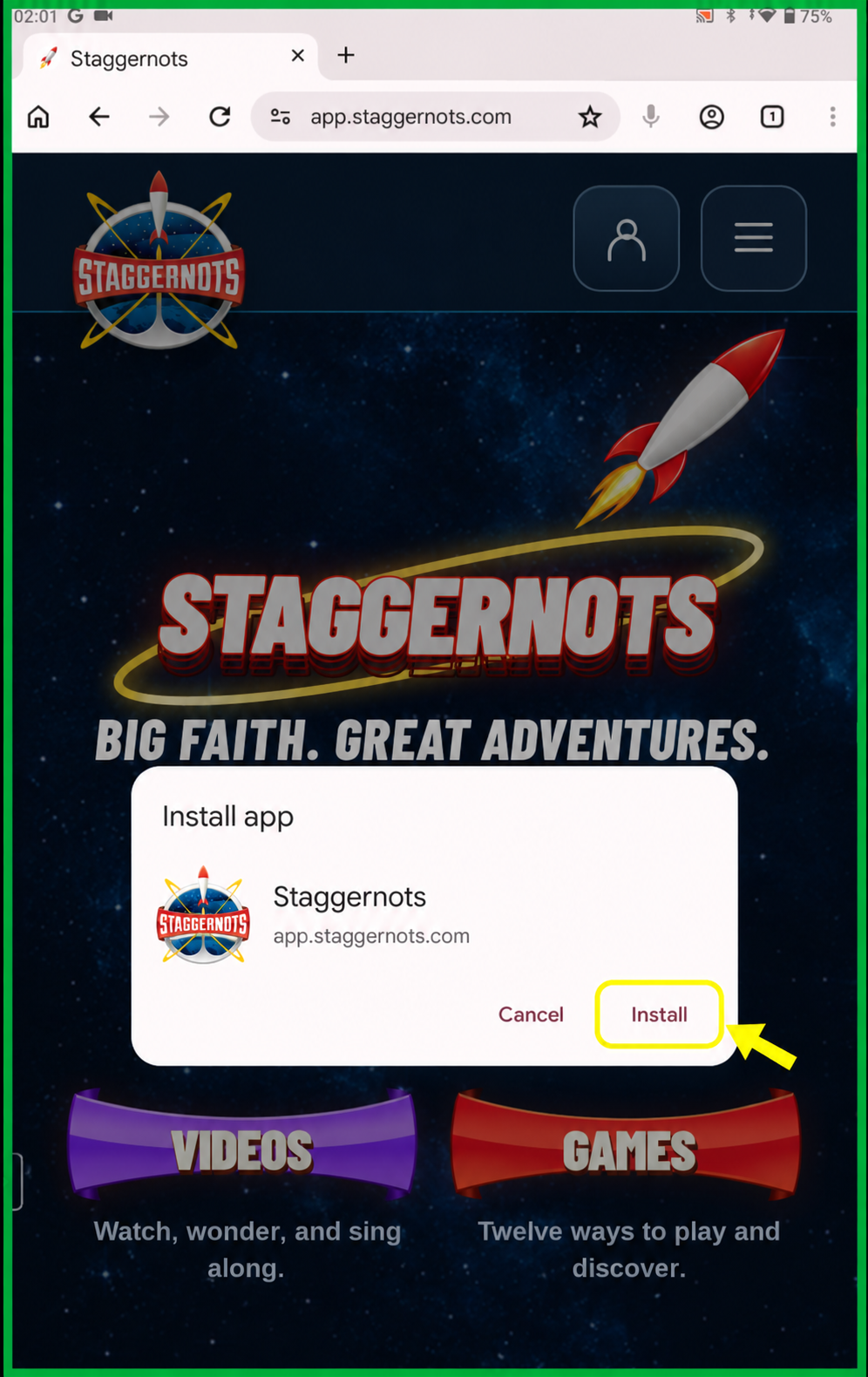
Confirm the installation
Check that the app name says Staggernots, then tap Install in the confirmation box. Look for the rocket icon in your app list or on your Home Screen.

Tap Install to finish
Starfield: ESA/Hubble & NASA, M. Häberle (MPIA) · CC BY 4.0